Review Manager
Tracks review count and star rating for your business profiles over time - Google My Business, Yelp, Trustpilot and TripAdvisor. For Google, Trustpilot and TripAdvisor this runs through the DataForSEO API as an async job: a task is posted on one cron run and its results are fetched on the next, rather than scraping live and risking a timeout. Yelp has no such API and falls back to scraping its page directly. Needs DataForSEO configured under Settings => DataForSEO Settings (see Settings) for the three DataForSEO-backed platforms - Enable for Review Checker specifically.
Report Summary
The default Review Manager screen. For one chosen website, compares each review link’s review count and rating between two dates, with the change highlighted.
Go to Seo Tools => Review Manager => Report Summary
Pick a Website and Period (Day/Week/Month/Year, or your own two dates), then click Search
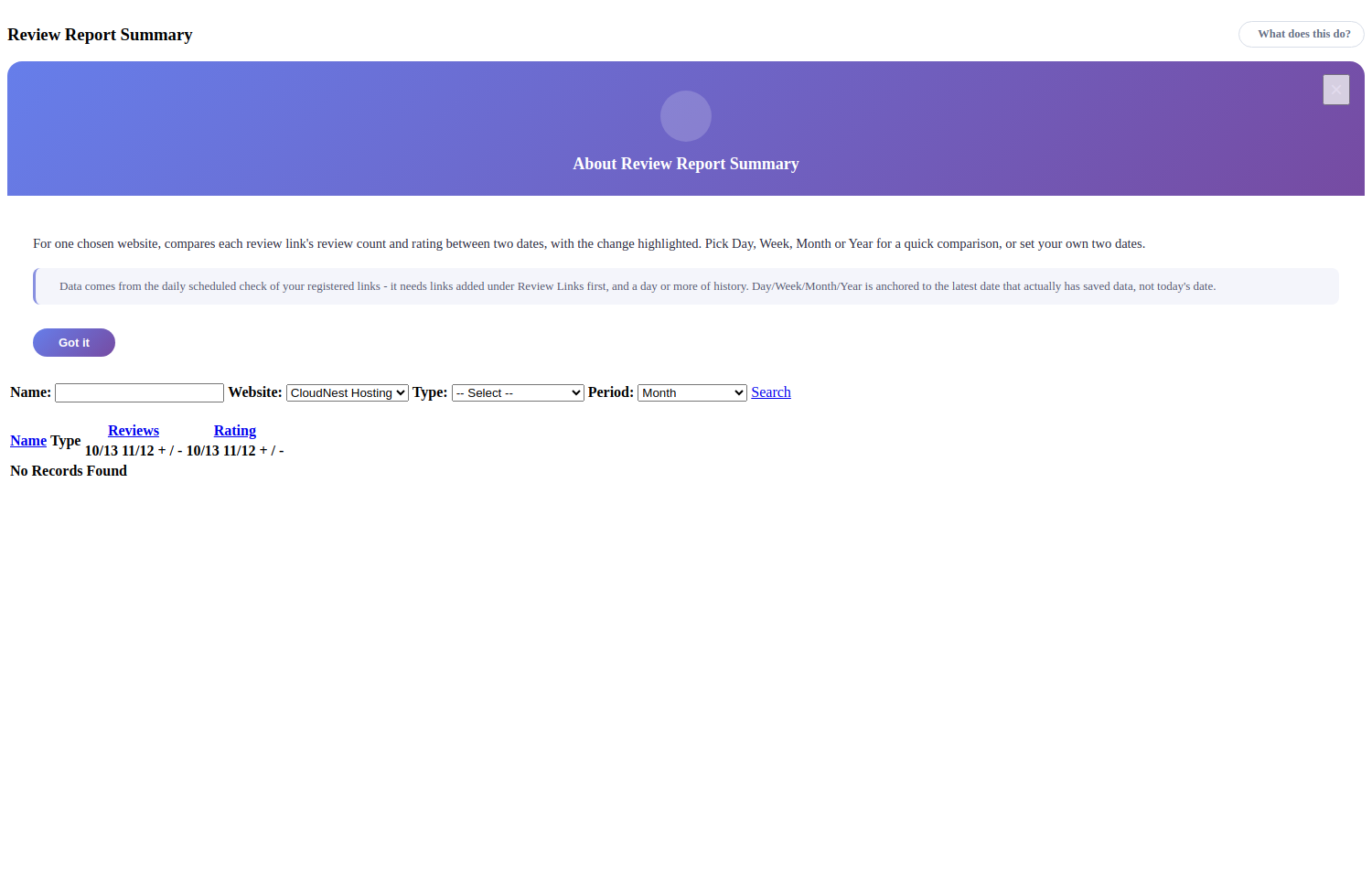
Day/Week/Month/Year is anchored to the latest date that actually has saved data, not today’s date
Needs at least one link added under Review Links below, and a day or more of history from the daily scheduled check
Review Links
Lists the review-profile links you’ve registered per website. A link must be created here before Report Summary, Detailed Reports or Graphical Reports have anything to show for it.
Go to Seo Tools => Review Manager => Review Links
Click New Review Link, pick a Website and Type (platform), and enter the profile Link
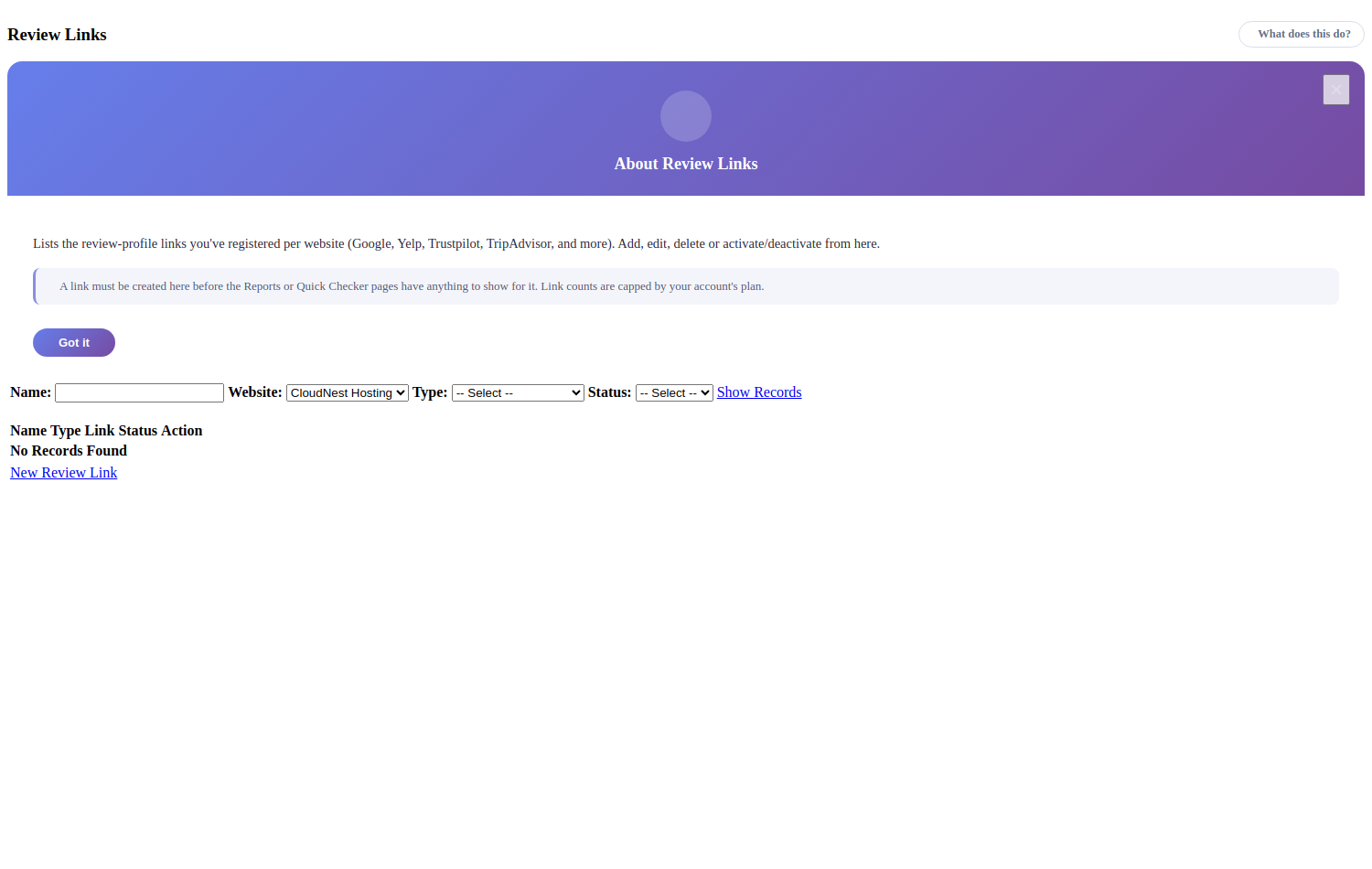
Type - Google My Business, Yelp, Trustpilot or TripAdvisor
Link - The full profile/listing URL for that platform, Eg:
https://www.google.com/search?q=kfc+Damrakfor GoogleActivate, deactivate or delete a link from this same list
Link counts are capped by your account’s plan
Quick Checker
Unlike every other tool here, this is an instant, unsaved preview - not part of the scheduled async check.
Go to Seo Tools => Review Manager => Quick Checker
Pick a Type (platform), paste a profile Link, then click Proceed
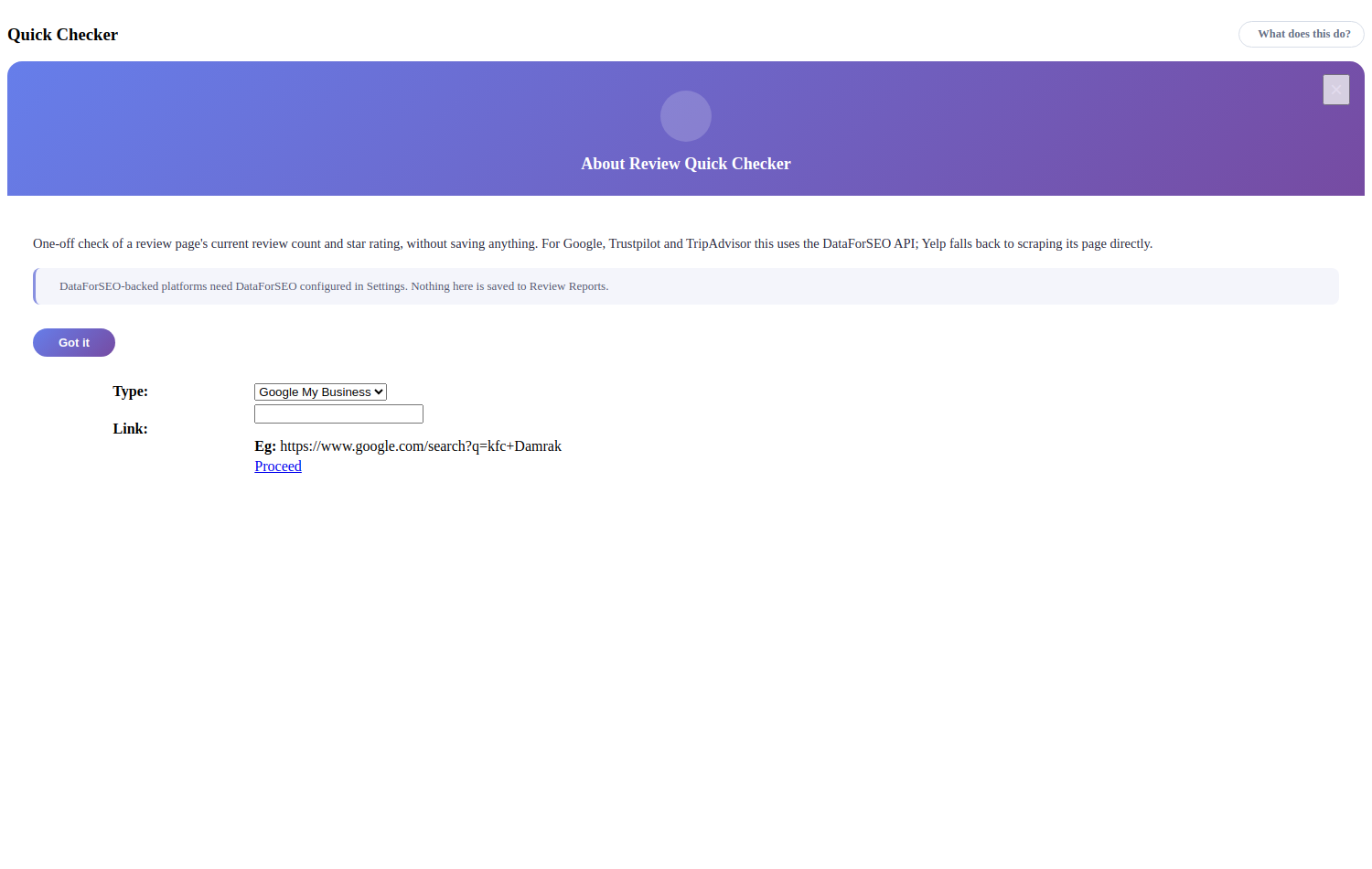
One-off check of a review page’s current review count and star rating, without saving anything
For Google, Trustpilot and TripAdvisor this uses the DataForSEO API; Yelp falls back to scraping its page directly
DataForSEO-backed platforms need DataForSEO configured under Settings => DataForSEO Settings first
Detailed Reports
For one chosen link, a day-by-day history table of review count and rating over a date range, with each day’s change from the previous one highlighted.
Go to Seo Tools => Review Manager => Detailed Reports
Pick a Link and Period, then click Show Records
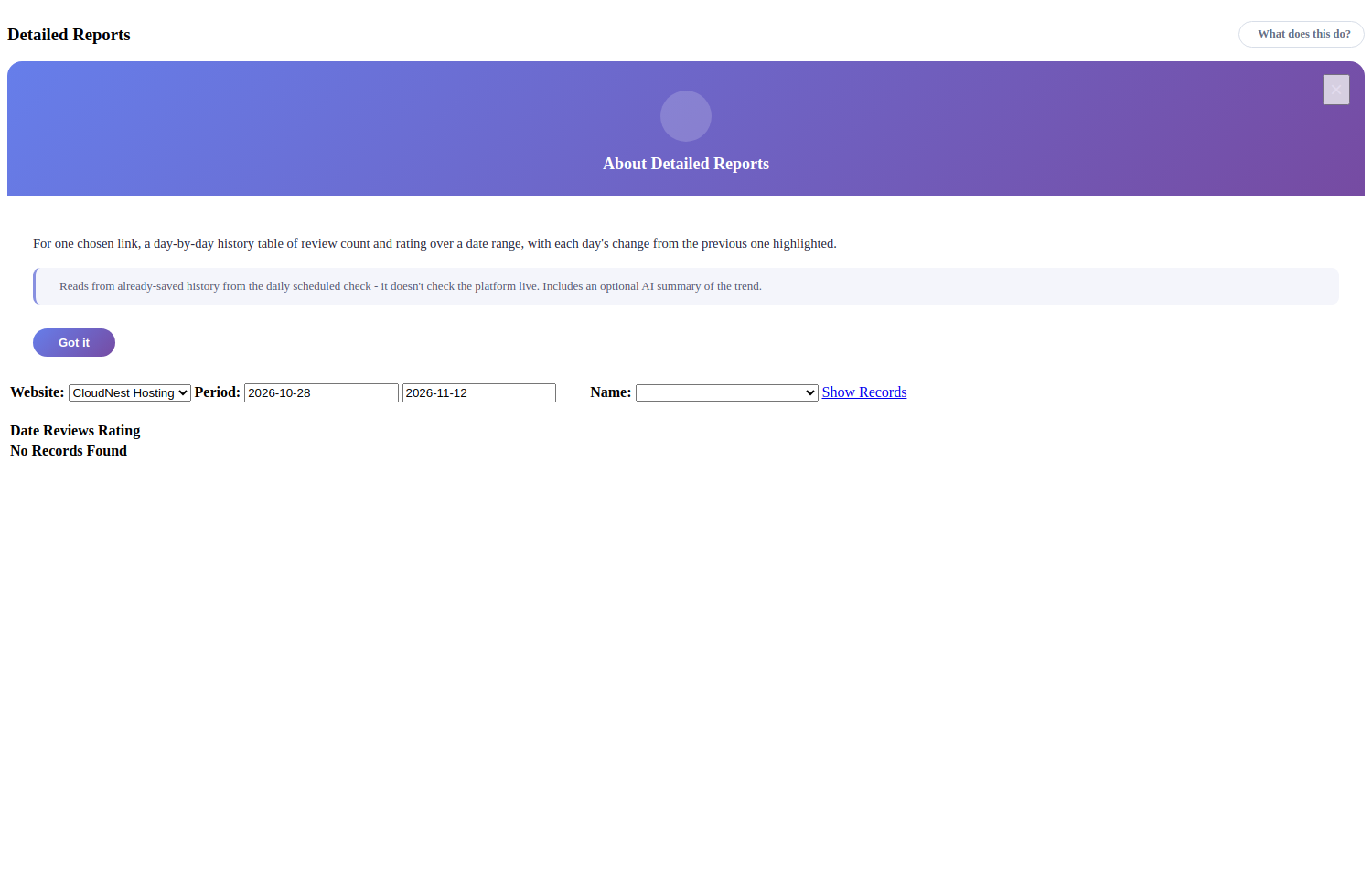
Reads from already-saved history from the daily scheduled check - it doesn’t check the platform live
Includes an optional AI summary of the trend, when Local AI is configured under Settings => Local AI Settings (see Settings)
Graphical Reports
Charts review count and/or rating over time for one link and date range, instead of showing them as a table.
Go to Seo Tools => Review Manager => Graphical Reports
Pick a Link and Period, then click Show Records